
Credly Configuration#
Credly Organizations#
Multiple Credly Organizations can be configured. Each Credly Organization record stores the credentials and organization identifier that Open edX Credentials uses to sync badge templates and issue badges for that Credly organization.
To configure a Credly organization in Open edX Credentials, navigate to https://<your-credentials-host>/admin/badges/credlyorganization/ and add a new organization:
Set the UUID to your Credly Organization identifier.
Set the API key used to authenticate with the Credly Organization.
Note
Credly API keys have a limited lifetime of 180 days. Rotate them before expiry. See Auth Tokens for Authorization.
The system pulls the Organization’s details and updates its name. If errors occur, verify the API key and UUID for the Organization.
Badge Templates#
Credly badge templates are created in the Credly Organization dashboard. After a template is published, Open edX Credentials can import it either through manual synchronization or through Credly webhook events.
Webhooks#
Webhooks keep Open edX Credentials in sync with changes made in your Credly organization. Configure them if you want badge template changes in Credly, such as creating, updating, publishing, or archiving templates, to be reflected in Open edX Credentials automatically instead of waiting for a manual synchronization.
Configure a webhook in the Credly management dashboard to point to your Credentials service:
https://<your-credentials-host>/badges/credly/webhook/
For Credly-side webhook setup details, see Create a webhook callback URL.
Open edX Credentials handles the following Credly webhook event types:
badge_template.created- a new badge template is published.badge_template.changed- a badge template is updated or archived. If the template state is no longeractive, Credentials automatically deactivates it.badge_template.deleted- a badge template is removed.
Synchronization#
To synchronize Credly badge templates for an Organization:
Navigate to
https://<your-credentials-host>/admin/badges/credlyorganization/and select the Organization.Run the
Sync organization badge templatesaction.
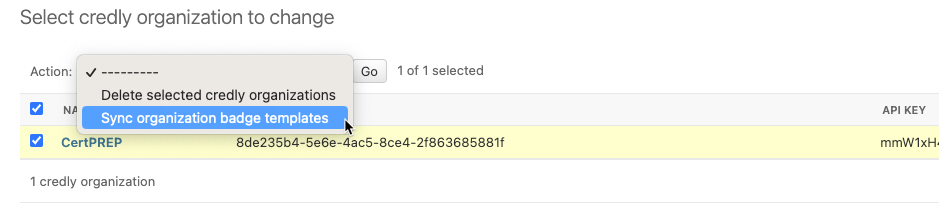
On success, the system fetches all badge templates whose state is active on the Credly side. Pagination is handled automatically.
New badge template records in Open edX Credentials are created inactive (disabled).
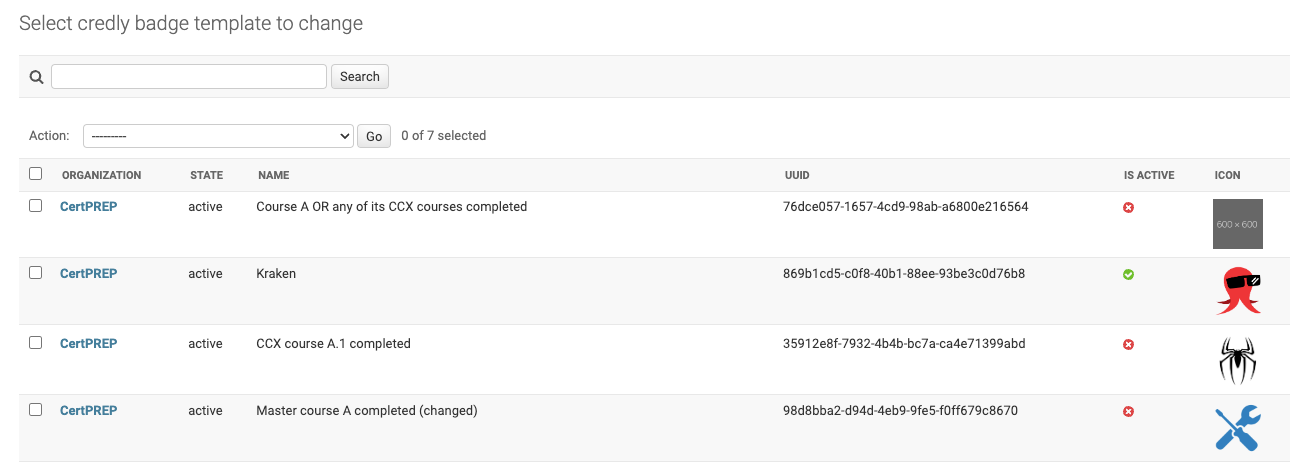
Use the badge templates list at https://<your-credentials-host>/admin/badges/credlybadgetemplate/ to confirm the expected active templates were imported before you configure requirements.
Configure requirements (see Badge Requirements) and activate the template (see Activation and Deactivation) before it takes effect.
See also
- Credly Authentication Methods
How to authenticate with the Credly API.
- Auth Tokens for Authorization
How to generate and manage Credly auth tokens.