
Managing Badges#
Creating Provider-Side Badge Definitions#
Before you can synchronize or activate badges in Open edX Credentials, you must create the provider-side badge definitions in Credly or Accredible.
For Credly:
Create and publish badge templates in your Credly organization first. For provider-side setup details, see Credly Knowledge Base.
Then configure the organization in Open edX Credentials and synchronize templates. See Credly Configuration.
For Accredible:
Create groups in Accredible first. For provider-side setup details, see Accredible Help Center.
Then configure the API connection in Open edX Credentials and synchronize groups. See Accredible Configuration.
Synchronizing Badge Templates#
Badge templates (Credly) and groups (Accredible) are created on the provider’s side and then pulled into Open edX Credentials through a sync action in the admin panel.
For Credly:
Navigate to
https://<your-credentials-host>/admin/badges/credlyorganization/and select one or more organizations.Run the
Sync organization badge templatesaction.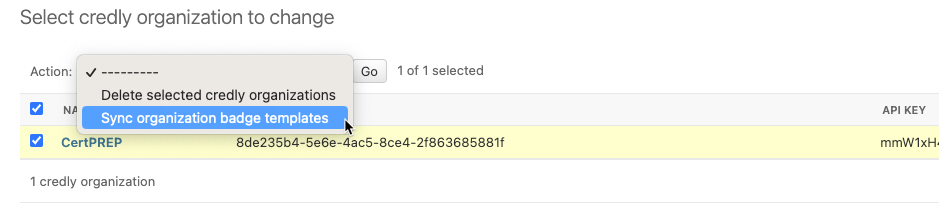
Only badge templates with active state on Credly are pulled. You can also configure Credly webhooks so template changes on the Credly side are synchronized automatically instead of waiting for the next manual sync. See Credly Configuration for webhook setup and full sync details.
For Accredible:
Navigate to
https://<your-credentials-host>/admin/badges/accredibleapiconfig/and select one or more configurations.Run the
Sync groupsaction.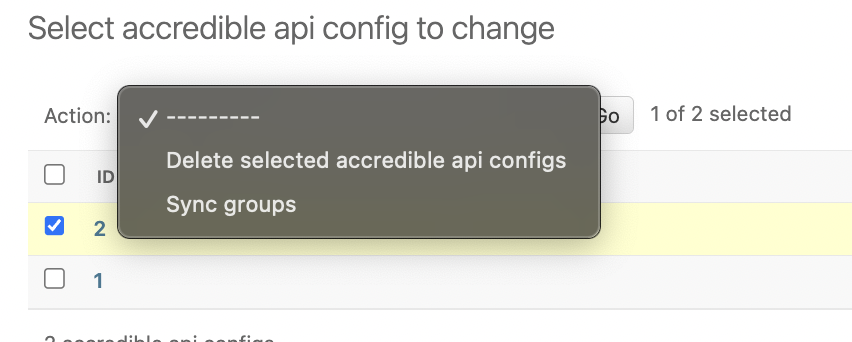
See Accredible Configuration for full sync details.
Note
Synchronized templates and groups are created inactive by default. Configure requirements and activate them before they take effect. See Activation and Deactivation.
Badge Progress#
Current badge progress is visible at https://<your-credentials-host>/admin/badges/badgeprogress/ in the Credentials admin.
Badge templates can have more than one requirement, so there can be partially completed badges. See Badges Processing for details on how progress is tracked.
Awarded Credentials#
Earned badges are listed at https://<your-credentials-host>/admin/badges/credlybadge/ for Credly and https://<your-credentials-host>/admin/badges/accrediblebadge/ for Accredible.
Once badge progress is complete (all requirements are fulfilled), the system awards the badge. See Badges Processing for the full awarding pipeline.
The system:
Creates an internal user credential record for the learner.
Emits a public signal about the badge award.
Sends an API request to the badge provider to issue the badge externally.
Issued Badges#
After a badge is awarded internally, the system sends an API request to the badge provider to issue the badge on their platform.
On successful issuing, the badge record in https://<your-credentials-host>/admin/badges/credlybadge/ or https://<your-credentials-host>/admin/badges/accrediblebadge/ is updated with:
External identifier - the identifier assigned by the provider (UUID for Credly, integer ID for Accredible).
External state - the badge status on the provider’s side (e.g.
accepted).
The issued badge then appears in the provider’s dashboard and is visible to the learner.
Deactivation#
Deactivating a badge template stops future processing for that template. Already issued badges are retained.
Deactivate a badge template by opening the record from https://<your-credentials-host>/admin/badges/credlybadgetemplate/ or https://<your-credentials-host>/admin/badges/accrediblegroup/, unchecking Is active, and clicking Save.
Inactive badge templates are ignored during event processing. To reactivate, check Is active again and save - processing resumes for new events immediately.
See Activation and Deactivation for activation details.
See also
- Credly Knowledge Base
Provider-side setup and management for Credly badge templates.
- Accredible Help Center
Provider-side setup and management for Accredible groups.
- Badging Configuration
Configure badge templates, requirements, and data rules.
- Badging Settings
Feature switches and integration settings.
- Badges Processing
How incoming events are processed and badges are awarded.